Automatic Resonance Suppressor
Quance
Harshness, ringing, mud, boxiness and sibilance are narrow problems, and a static EQ notch is a permanent answer to a temporary one. Quance listens to the spectrum continuously and reduces only what misbehaves, only while it misbehaves.
Hundreds of fast, self-adjusting spectral filters, steered by a detector you can teach in one pass over your own audio. Tone and transient protection keep the performance intact, and loudness-matched monitoring means every comparison you make is about tone, not volume.
- Coming soon
- VST3 / AU / AAX
- macOS + Windows
- Trial
- Free 7-day trial
- Purchase
- One-time purchase, no subscription
- Refunds
- 14-day money-back guarantee
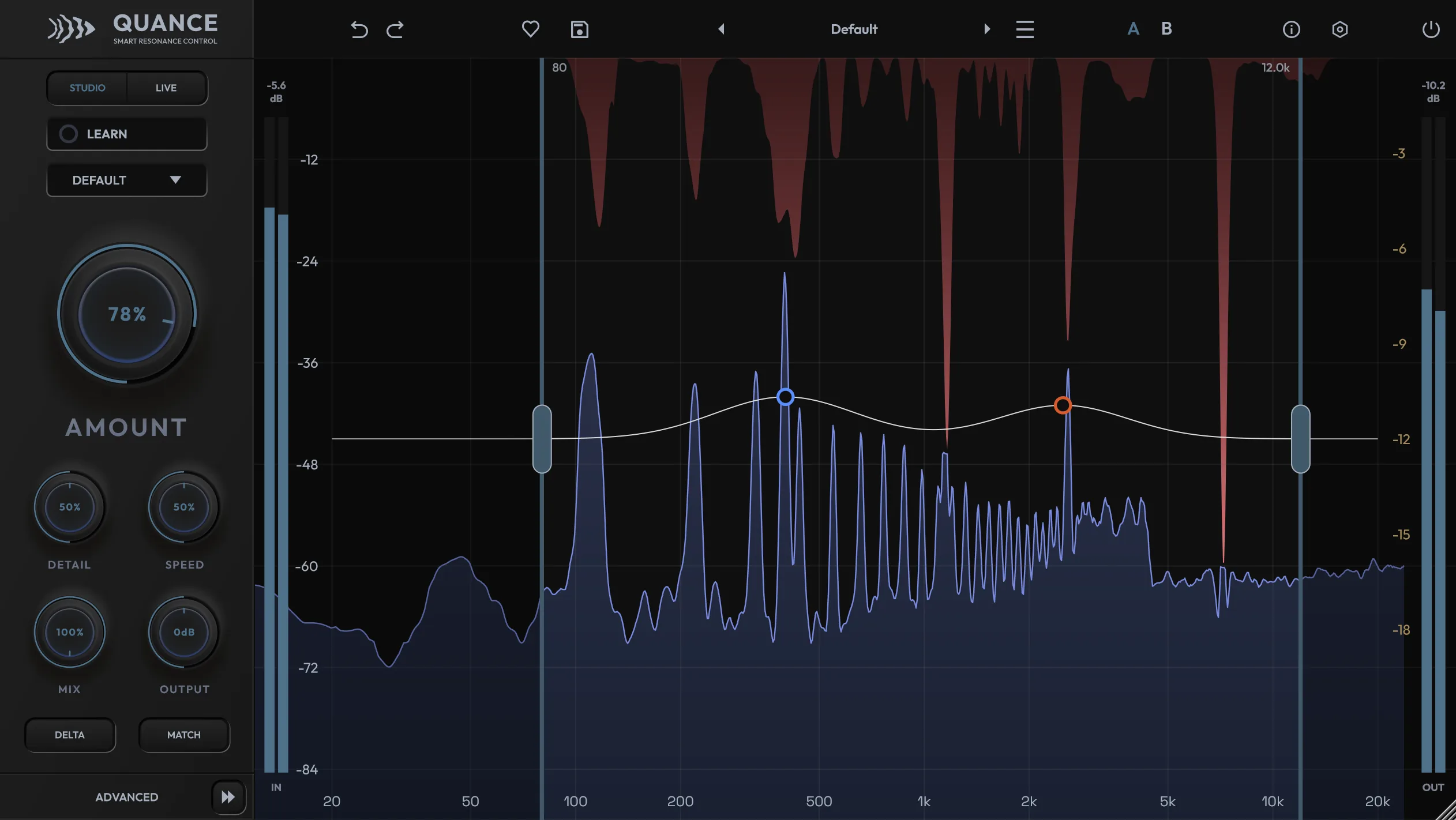
Visualized
Resonance control in motion
The detector scores every frequency against its spectral neighbourhood, converts those scores into per-frequency gain, and stops at a depth limit that Amount sets for you (or that you set with Max Cut). Delta lets you hear what is removed on its own: rings and fizz, not the instrument.
What It Does
Stop hunting problem frequencies by hand
Set how much cleanup you want and Quance decides where, when and by how much to act, then decides it again every few milliseconds. Because the processing only touches the parts of the spectrum that misbehave, the result stays cleaner and more transparent than the static cuts you would otherwise leave in place.
It is a corrective tool, not a parametric EQ, a fixed-band de-esser or a loudness maximiser. It removes what should not be there and leaves the rest alone.
One Knob That Means Something
AMOUNT scales the whole engine at once: detection sensitivity, how early reduction starts, and how hard it digs in. On most sources it is the only control you touch.
Learn From Your Own Audio
Press LEARN and play the part that misbehaves. Click again to finish, or let the audio stop and it finishes by itself, and Quance has placed focus points on the strongest resonances it heard and narrowed the detection range around them, all as one undo step.
Six Detector Modes
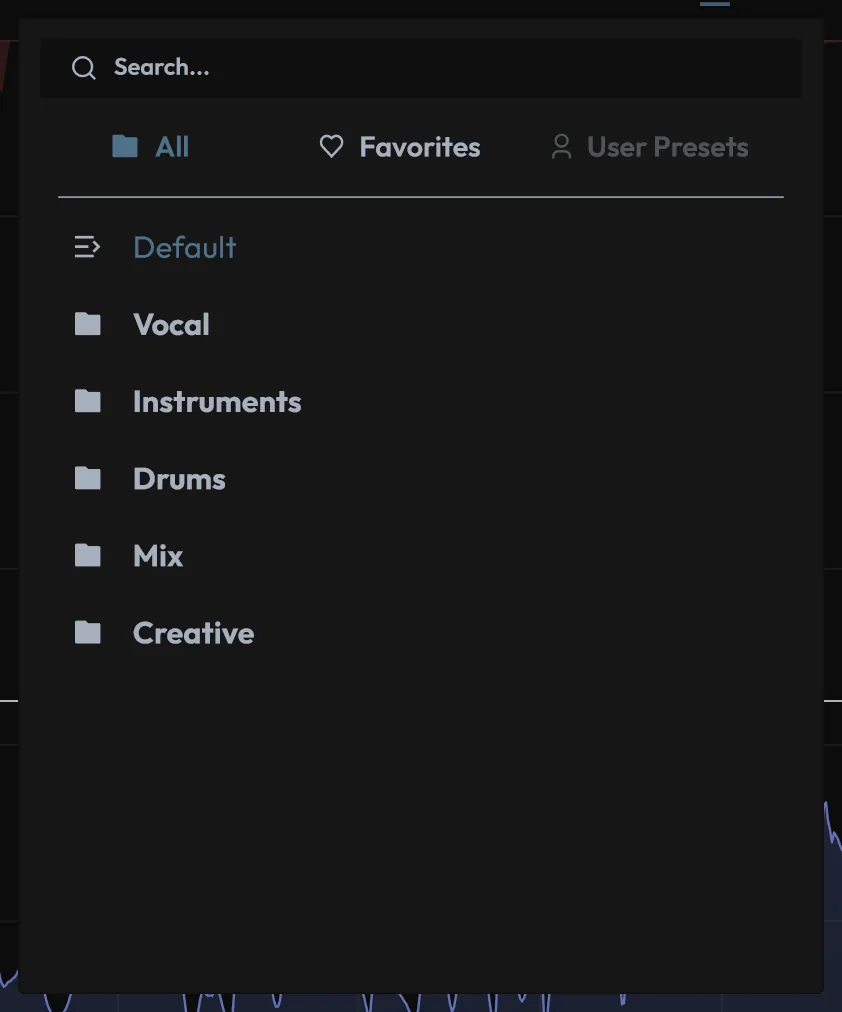
Default, Vocal, Instrument, Drums, Mix and Hard re-bias what the engine listens for and what it protects, without moving a single one of your knob positions.
Depth Limit
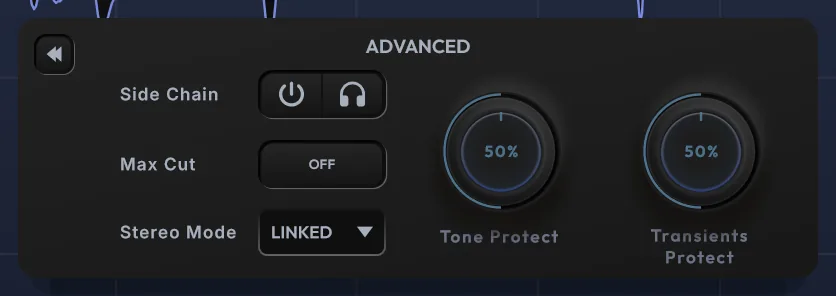
With the ceiling off, AMOUNT decides how deep any single reduction can go, ramping from nothing at 0 % to the full 18 dB by 60 %. Switch on the optional Max Cut to set the limit yourself, and its line appears on the graph.
Musical Protection
Tone Protect watches fundamentals, overtone series and vocal formants and holds the reduction back where a cut would cost you them. Transients Protect relaxes reduction while attacks pass, so hits and consonants stay punchy.
Honest Comparisons
DELTA monitors only what is removed. MATCH (off by default) makes up the level the cleanup costs, by up to 3 dB, so an A/B compares the two at matched loudness.
- Coming soon
- VST3 / AU / AAX
- macOS + Windows
The Graph
Everything the detector is doing, on one screen
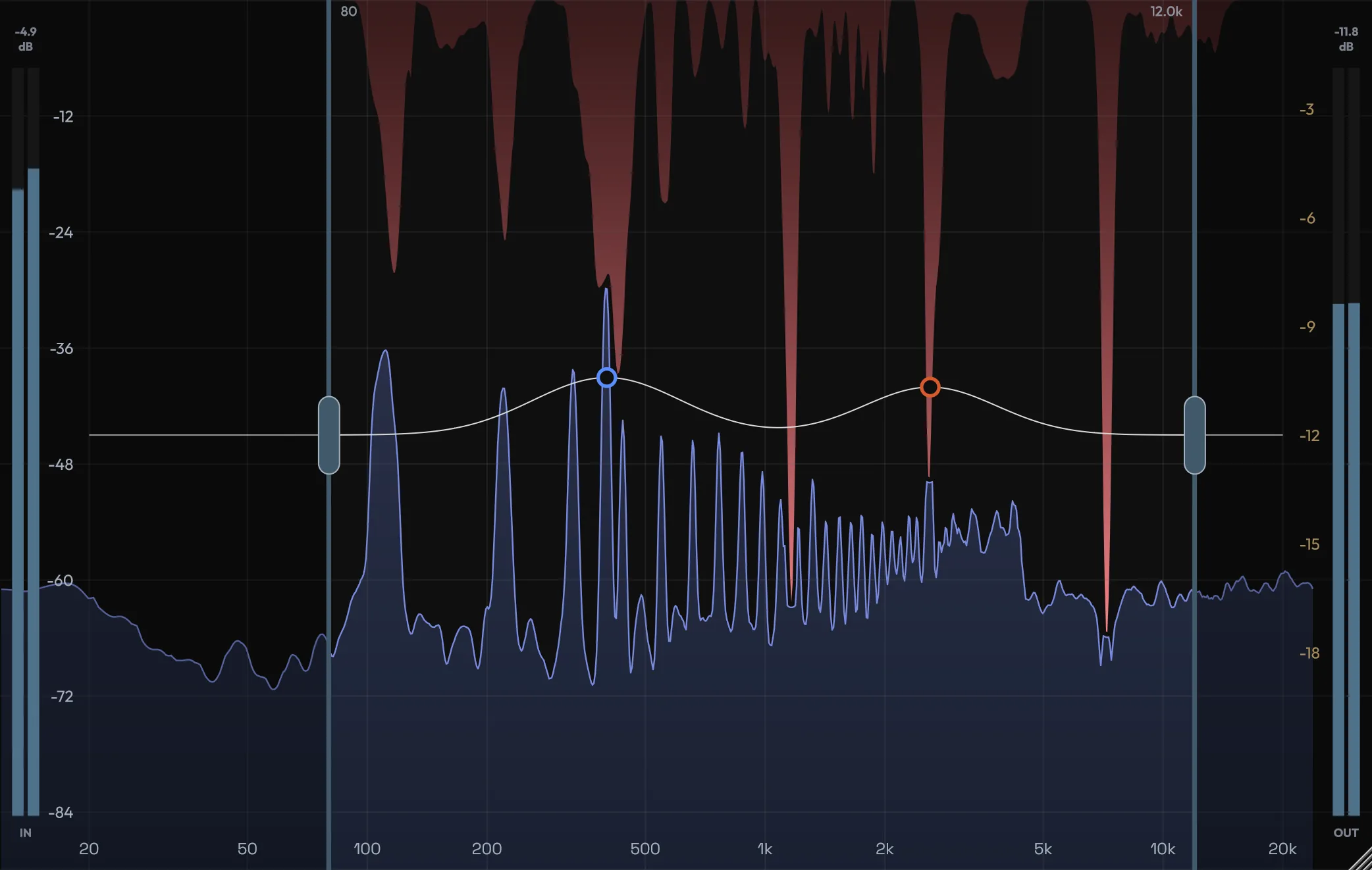
The blue spectrum is the processed output, drawn from 0 down to −90 dB on a logarithmic 20 Hz to 20 kHz axis and tilted by 4.5 dB per octave, so well-balanced material reads roughly level and anything genuinely dark looks it. The red overlay descending from the top is the current gain reduction per frequency. Notches reaching down show where Quance is working right now, and dimmed regions sit outside the detection range.
Drag the range handles to decide where the detector is allowed to act, or right-click for task presets: Full Range, Vocal Harshness, Sibilance, Mud / Box, Cymbal Fizz, Snare Ring and Mix Polish. Up to four independent ranges can be live at once, so you can tame low-mid cloud and high sibilance while leaving the presence region untouched.
Double-click anywhere to add a focus point, up to eight. Push one up to make the detector more eager there, or pull it down to shield the area from reduction. Scroll to set its width, and use its headphone icon to solo a bandpass at that frequency so you can find the resonance by ear. Right-click a point to set it to Tame or Protect, change its width, bypass, reset or delete it.
Learn
Let it set itself up from your own audio
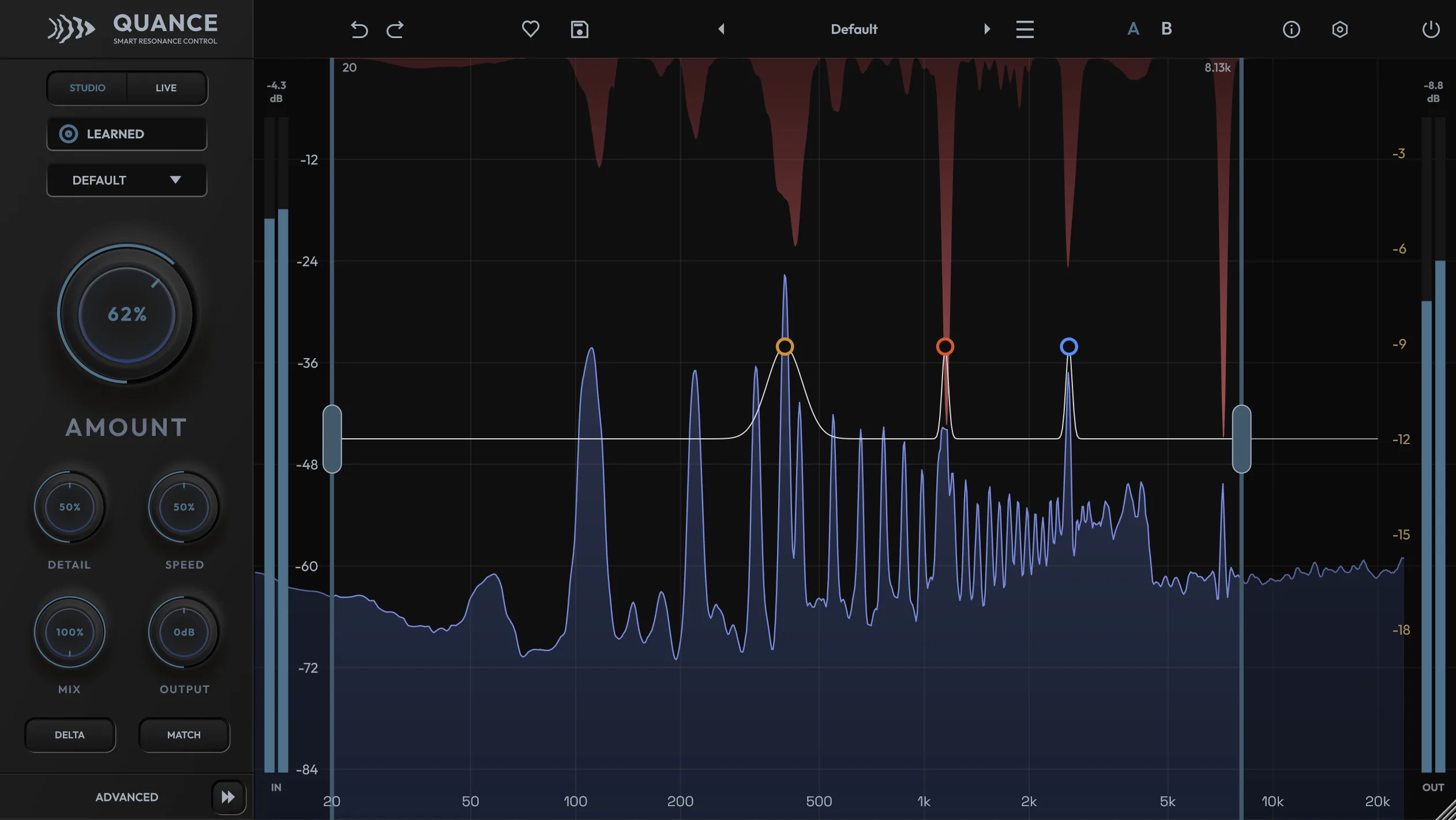
Click LEARN while the part that misbehaves is playing. A single click starts an open-ended pass: Quance keeps listening until you click again, or until the audio has been quiet for about five seconds. That is the pass to use when the problem does not happen every bar: sibilance, a room ring on certain notes, a cymbal that only gets harsh in the chorus. Double-click instead for the classic fixed eight-second pass.
Silence never counts towards the analysis, so the counter only advances while there is something to hear. When further listening stops changing the answer the button reads STEADY and the ring turns solid: it has heard enough.
The pass places up to four focus points on the most prominent stable resonances, weighting narrow protruding peaks above broad energy, sets each point's width to match its peak and narrows the detection range around the affected region. It never moves AMOUNT or any other knob, a pass that finds nothing leaves your setup alone, and the whole result is a single undo step.
Controls
Five knobs, and only one you usually move
Every main control has a plain-language tooltip, shown in the optional tooltip bar. The knobs are automatable; the engine, grade and phase choices are not, because changing them changes latency.
Amount (0 to 100 %)
The main reduction control, 30 % by default. 20–40 % polishes, 50–70 % is committed cleanup, beyond that is a firm clamp for problem sources.
Detail (0 to 100 %)
Broad to surgical. Low values smooth wide build-ups, high values snipe needle-like peaks and leave the surrounding spectrum alone.
Speed (0 to 100 %)
How fast the reduction filters move. Slow breathes with the material; fast clamps consonants, cymbal hits and plucks.
Mix (0 to 100 %)
Latency-aligned dry/wet. Lower values give parallel-style taming with the original body preserved; use Linear phase when you blend.
Output (±12 dB)
Manual level trim after processing. Dimmed while MATCH is doing the job for you.
Max Cut (0 to 18 dB, optional)
Off by default, when AMOUNT sets the depth limit for you. Switch it on to set the ceiling yourself: it starts at 6 dB, and mixes and masters usually want 2–4 dB, single tracks 5–9 dB, rescue jobs more.
Workflow
Built for the jobs that keep coming back
Harsh vocals and bright mics
Vocal mode, LEARN on a busy phrase, AMOUNT to roughly 35–55 %. Check in DELTA: you should hear harshness and sibilance leaving, not vowels.
Ringing snares and fizzy cymbals
Drums mode keeps the attacks intact while rings and fizz between hits are tamed. The Cymbal Fizz and Snare Ring range presets get you there in one right-click.
Buses and masters
Mix mode reduces more gently and limits MATCH to ±1.5 dB. Keep AMOUNT at 15–30 %, switch Max Cut on around 2–4 dB for a guaranteed worst case, and the mix should sound calmer while keeping its size.
Unmasking with the sidechain
Route the lead vocal into a Quance on the guitar bus and the guitars dip where the vocal needs room, without an overall volume dip. The sidechain only drives detection, and sidechain listen lets you hear what is keying it.
Tracking and stage work
The Zero grade of the Live engine reports no latency at all, applying its reduction through a 48-filter minimum-phase bank instead of an FFT (the sidechain is inactive on Zero). Save As Default can switch every instance in the session to it at once.
Podcast and dialogue cleanup
Room ring on untreated spaces, boxy laptop mics and sibilant speech all respond to a narrow detection range and a moderate AMOUNT.
Tech Specs
Two engine families, five grades, reported latency
Studio is a three-band multi-resolution engine: long analysis windows in the lows to resolve room modes and bass ring, short windows in the highs to keep transients crisp. Live is a single-window engine tuned for low latency, with a zero-latency grade that leaves the audio path out of the FFT altogether. Switching between them is crossfaded to avoid clicks.
Studio Engine
Pro: 4096 smp ≈ 93 ms @ 44.1 kHz
Ultra: 8192 smp ≈ 186 ms
Live Engine
Zero: 0 smp, 48-filter minimum-phase bank
Light: 1024 smp ≈ 23 ms @ 44.1 kHz
Normal: 2048 smp ≈ 46 ms
Phase
Minimum phase by default, Linear phase in Settings. Zero always runs minimum phase.
Operating Systems
macOS 10.15+ (Apple Silicon & Intel)
Windows 10 (64-bit)
Formats
VST3 and AAX on Windows.
VST3, AU and AAX on macOS.
Mono and stereo processing.
User manual (PDF)
Stereo Handling
Linked, Dual, Mid-Side or M-S Link. Linked drives one shared reduction from the louder channel, so the stereo image never shifts.
Presets & Interface
53 factory presets in a browser with search and favourites, A/B snapshots, full undo history, input and output meters, resizable 50–200 % with an optional tooltip bar.
Licensing and updates
- Trial
- Free 7-day trial
- Purchase
- One-time purchase, no subscription
- Activations
- Up to three active activations at a time, revocable from your account
- Offline activation
- Available by license file; permanently binds the license to that device
- Updates
- Free updates
- Refunds
- 14-day money-back guarantee
FAQ
How the detector behaves
Is Quance a dynamic EQ or a de-esser?
Neither. A dynamic EQ and a de-esser both need you to choose the bands. Quance runs hundreds of self-adjusting spectral filters and decides where, when and how much to act on its own. Amount limits how deep any single reduction goes, and you can set that limit yourself by switching on Max Cut.
Will it flatten the character of the source?
Tone Protect, Transients Protect and the depth limit are there to prevent that. Judge it in Delta: you should hear rings, fizz and harsh peaks, not the whole instrument.
Does it add latency?
Not on the Zero grade of the Live engine, which reports 0 samples. Zero applies its reduction through a bank of 48 minimum-phase bandpass filters instead of an FFT, and the sidechain is inactive while it is selected. The other grades add latency and report it, so your DAW compensates: Light runs at 1024 samples, about 23 ms at 44.1 kHz. Use Studio while mixing. Switching engines is crossfaded to avoid clicks; the latency change itself is handled by your DAW.
What does Learn actually change?
It places up to four focus points on the most prominent stable resonances it heard, sets each pointâs width to match its peak, and narrows the detection range around the affected region. One click starts an open-ended pass and a second click ends it, or let the audio stop and it finishes by itself; double-click for the fixed eight-second pass. It never moves Amount or any other knob, and the whole result is one undo step.
Can I use it on a master?
Yes. Mix mode reduces more gently and limits Loudness Match to ±1.5 dB. Keep Amount at 15 to 30 %, switch Max Cut on at 2 to 4 dB so you have a guaranteed worst case, and switch Match on (it starts off) so the bypass comparison stays fair.
Linear or minimum phase?
Both are in Settings. Minimum phase is the default, and it pushes filter ringing behind the transient rather than around it. Choose Linear phase when you blend with Mix below 100 %, because it lines up cleanly with the dry signal.
Can I activate it offline?
Yes. Create a device file on the studio machine, exchange it for an access file on any internet-connected device, and drop that back on the plugin. Offline activation permanently binds the license to that device, so it cannot be moved to another computer later.
Updates
Changelog
Read the Quance release record.
Version 1.0.0
- Initial Release